
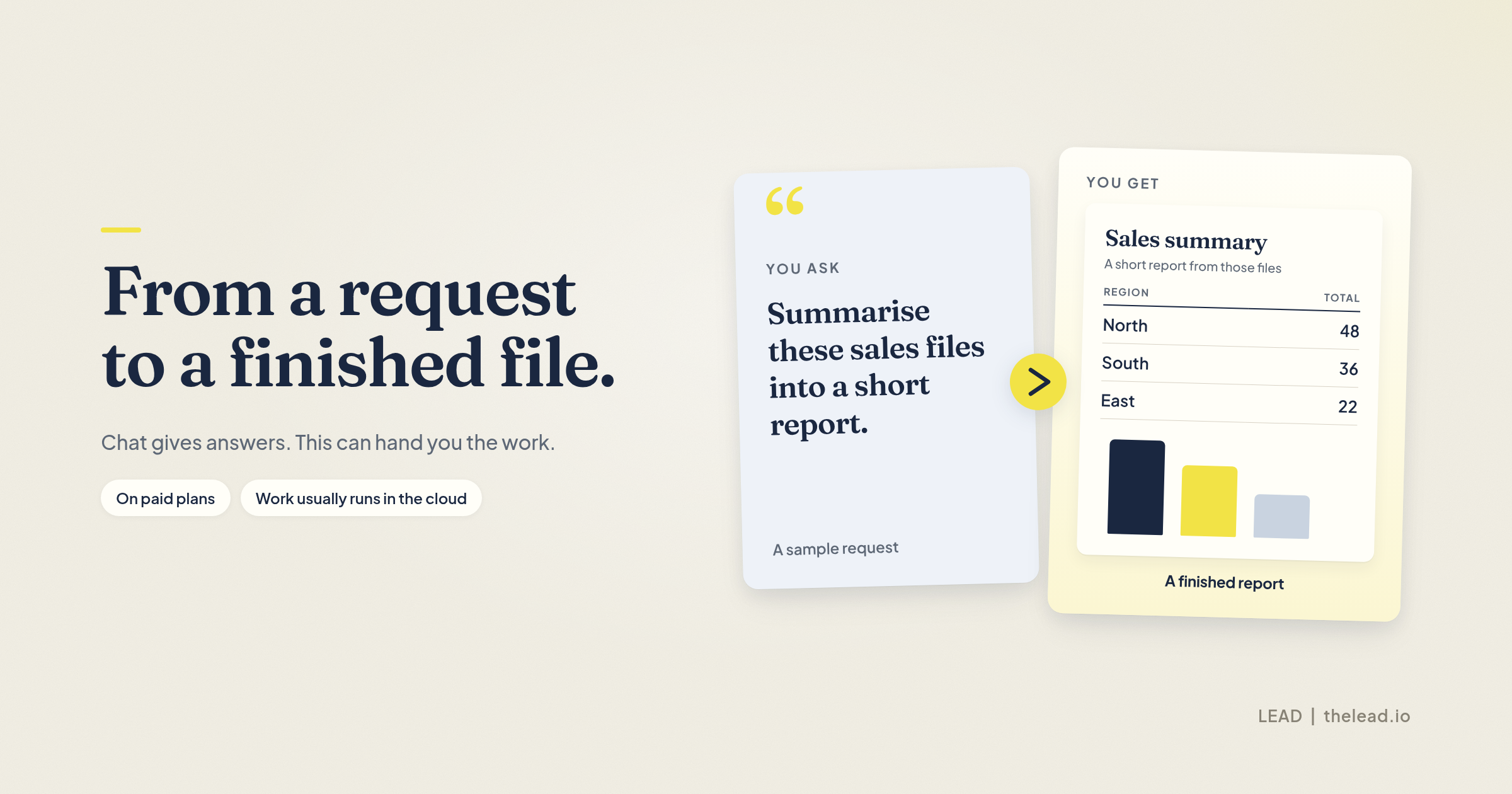

Most people use AI the same way. They type a question, get an answer, copy it somewhere else and repeat. Claude Cowork changes that. Instead of answering one prompt at a time, Claude takes on a whole task, works through it step by step and hands you a finished file.
Quick answer: Claude Cowork is Anthropic’s agentic workspace for multi-step work: you describe an outcome and Claude plans, runs tools, and returns finished files. It is on paid plans only (Pro, Max, Ultra, Team, Enterprise), not Free. Sessions usually run in the cloud so work can continue with your laptop closed; local folders need Claude Desktop connected.
This guide explains what Claude Cowork is, which plans include it, how to set it up on Claude Desktop, and how to use it for real work like reports, spreadsheets and research.
Last fact-checked: 10 November 2026 (against Anthropic’s public help docs and pricing — not a first-hand product test).
What Is Claude Cowork?
Claude Cowork is a mode in Claude that lets it carry out multi-step tasks on your behalf. It uses the same agent technology that powers Claude Code, Anthropic’s coding agent, but you do not need a terminal or any coding knowledge to use Cowork.
You describe the outcome you want, Claude makes a plan, and then it does the work. That could mean reading a folder of files, searching the web, building an Excel file with working formulas, drafting a PowerPoint deck or organising hundreds of documents. You can watch it work, step in to change direction, or leave it running and come back later.
The easiest way to think about it is that chat gives you answers, while Cowork gives you finished work.
Claude Cowork vs Claude Chat vs Claude Code
| Claude Chat | Claude Cowork | Claude Code | |
|---|---|---|---|
| Best for | Questions, quick drafts, brainstorming | Multi-step tasks and finished deliverables | Writing and editing software |
| How it works | One reply per prompt | Plans, runs steps, delivers files | Works inside a code project |
| Works with your files | Uploads | Connected folders on your computer (for local files) | Code repositories |
| Needs coding skills | No | No | Helpful for software work, but not required |
Chat and Cowork now share the same home in Claude. On many accounts the message box still shows a “Chat” and “Cowork” option. On accounts with the newer combined experience, you will not see that switch at all, because any conversation can take on a Cowork-style task. That combined experience is rolling out gradually.
Which Claude Plans Include Cowork?
Cowork is available on paid Claude plans only. That includes Pro, Max, Ultra, Team and Enterprise. It is not included on the free plan. Claude still has a free plan for everyday chat — Cowork is the part that needs a paid plan.
You can use Cowork in these places.
- Claude Desktop for macOS and Windows, on all paid plans. A Linux Desktop version is in beta; treat local-folder and computer-use support on Linux as evolving rather than guaranteed to match macOS and Windows.
- Claude on the web and the Claude mobile app, on Pro, Max and Ultra plans, on Team plans (in beta), and on Enterprise when an owner turns it on.
- The Claude in Chrome side panel, on all paid plans. On Enterprise, an owner may need to enable Claude in Chrome and cloud Cowork.
If you are new to Claude, the Pro plan is the cheapest way to try Cowork. If you hit usage limits often, the higher plans give you more room.
Sources: Get started with Claude Cowork · Claude pricing
How Claude Cowork Works
By default, Cowork runs your tasks in the cloud, on Anthropic’s servers, in an isolated environment. Your sessions and files are saved to your Claude account. That has a few useful effects.
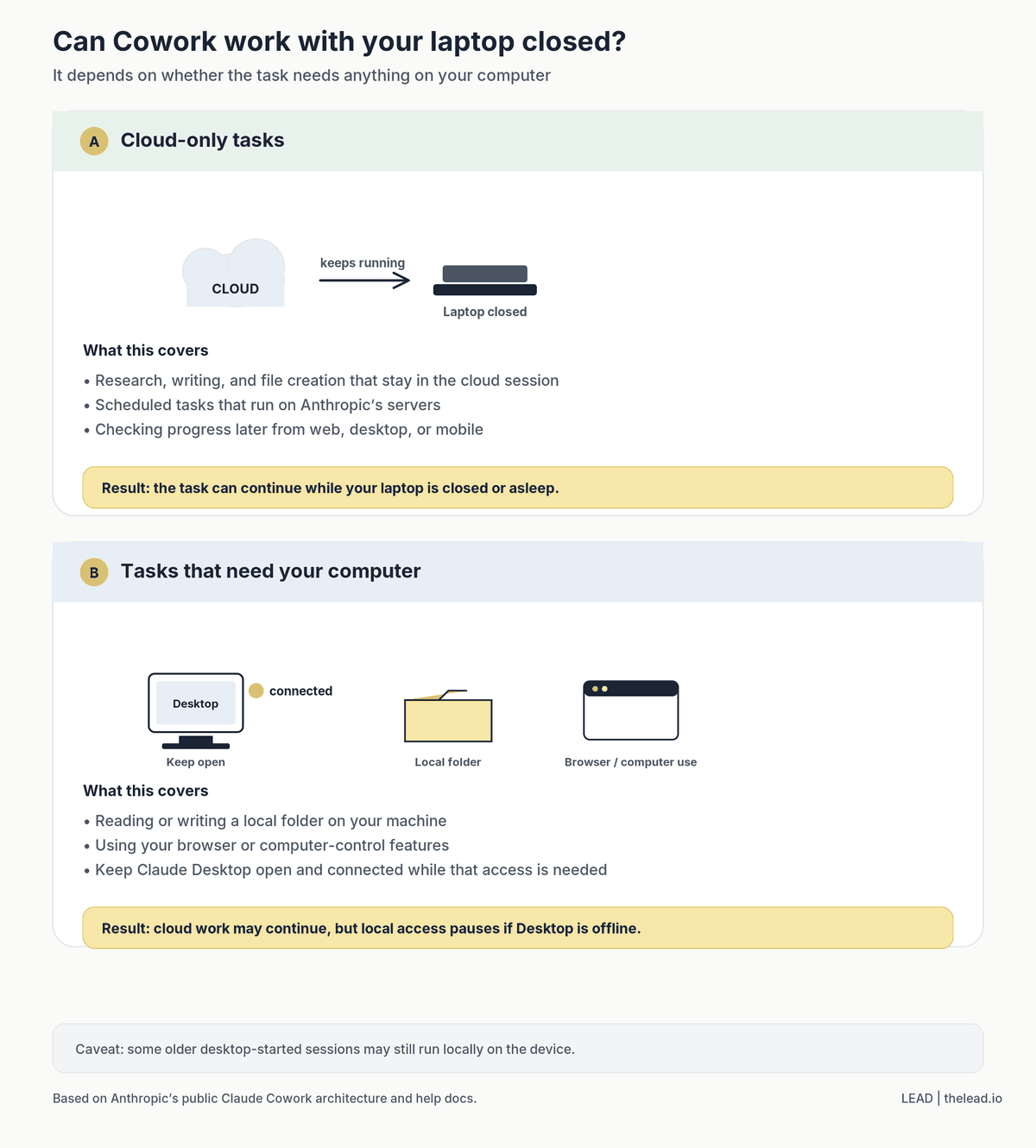
Your work can keep going when you close your laptop. You can start a task on your desktop, check on it from your phone and download the result on the web. Scheduled tasks can run even when your computer is switched off.
When a task needs something on your own computer, such as a local folder or your browser, Claude reaches it through the Claude Desktop app. That is why Claude Desktop matters. For anything involving local files, keep the app open and connected while the task runs. Some older desktop-started sessions may still run locally on the device.
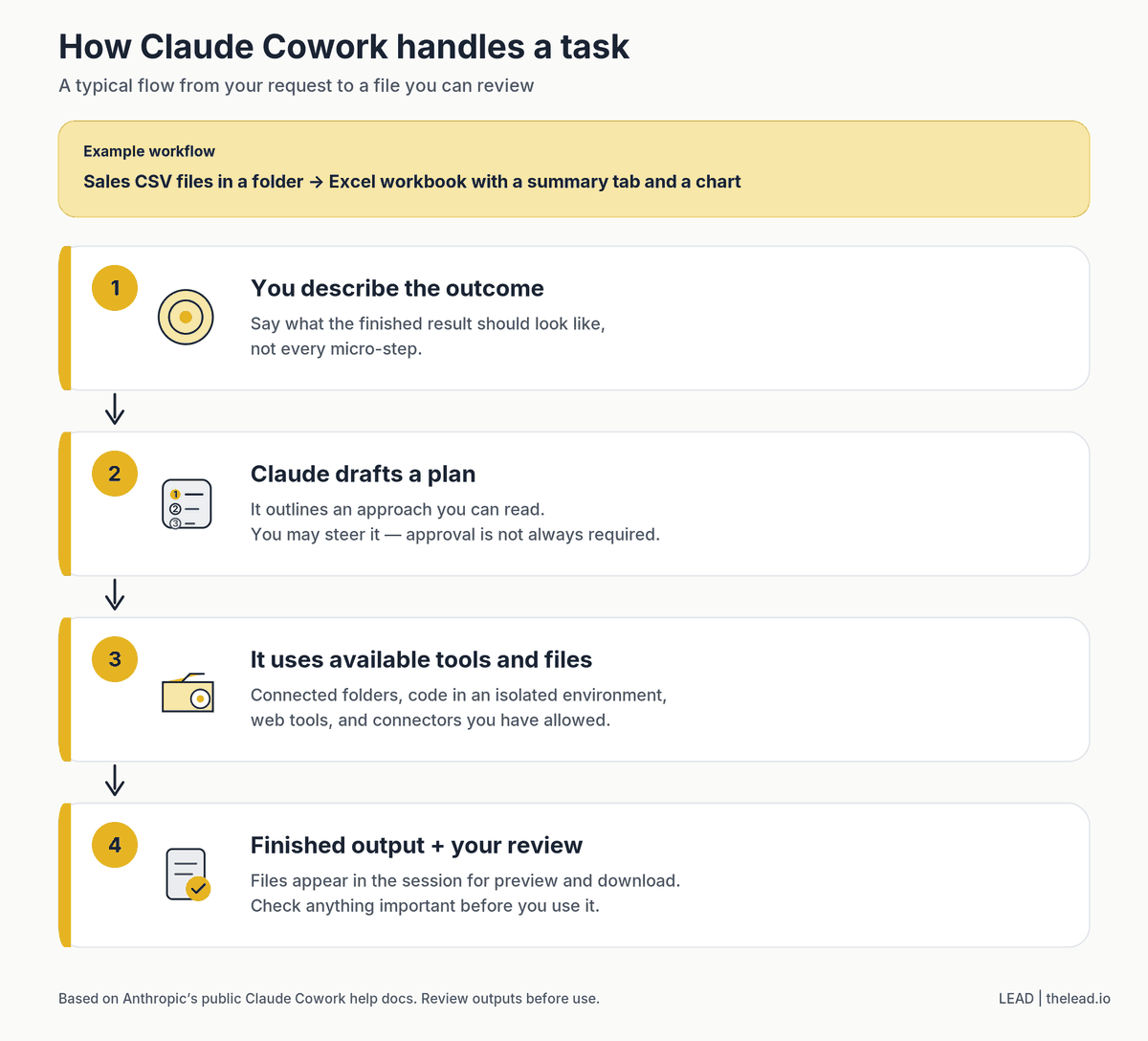
When you start a task, Claude will typically do the following.
- Read your request and create a plan.
- Break bigger jobs into smaller subtasks.
- Run code and tools in its isolated environment.
- Work on several parts in parallel if that helps.
- Deliver finished files to your session so you can preview and download them.
Sources: Get started with Claude Cowork · Architecture overview
How to Set Up Claude Cowork on Claude Desktop
Step 1. Install or update Claude Desktop
Download Claude Desktop from claude.com/download and sign in with your paid account. If you already have it installed, update to the latest version, since Cowork features change often.
Step 2. Start a Cowork session
Open the app and find the message box. If you see “Chat” and “Cowork” options, select Cowork. If you do not see them, you already have the combined experience and can just type your task.
Step 3. Connect a folder
For tasks that use files on your computer, choose a local folder to work in. For local files, Claude can only read and write inside folders you connect. (Connectors, uploads and cloud session files are separate.) Start with a test folder rather than your whole Documents folder until you are comfortable with how it works.
Step 4. Describe the outcome, not the steps
Be clear about what the finished result should look like. For example, instead of “help with my sales data”, try this.
Use the three CSV files in this folder to build an Excel workbook with one tab per month, a summary tab with total sales by region, and a chart comparing regions. Highlight any region that dropped more than 10% month on month.
Step 5. Review the plan, then let it run
Claude will usually show its approach before or as it starts. Read it, adjust anything that looks wrong, then let it work. You can step in at any time to change direction. You do not always need to formally approve a plan before Claude begins.
Choose How Much Claude Asks Before Acting
Choosing how independently Claude acts is one of the most important safety decisions you will make.
On the newer combined Claude experience, the message box offers two permission settings:
| Mode | What happens | When to use it |
|---|---|---|
| Manual | Claude asks before taking actions and you allow or deny them | Sensitive files, anything involving money or emails sent as you |
| Auto | Claude keeps working and reviews each action for safety, blocking anything it judges risky | Everyday tasks where you trust the files and connectors |
Auto is the default on Pro, Max, Ultra and Team plans. Manual is the default on Enterprise. On Team and Enterprise plans, your admin may limit which modes you can use.
If your account still has the older Chat / Cowork switch, you may also see Skip (sometimes labelled “Skip all approvals”). In that mode Claude does not pause for approval and nothing automatically checks its actions — only use it when you fully trust every file, app and connector involved. The newer combined experience documents Auto and Manual only.
Whatever mode you pick, Claude still asks for your permission before permanently deleting any files.
Sources: Get started with Claude Cowork · Claude Cowork and chat are one Claude · Use Claude Cowork safely
Five Ways to Use Claude Cowork at Work
1. Turn messy notes into a finished report
Drop meeting notes, voice memo transcripts and a few reference documents into a folder.
Read everything in this folder and write a two-page project update for senior management. Include progress, risks, decisions needed and next steps. Save it as a Word document.
2. Build spreadsheets with working formulas
Cowork can produce real Excel files with formulas, conditional formatting and multiple tabs, not just CSV files you have to fix afterwards.
Create an expense tracker in Excel with tabs for each month, a dropdown for category, a SUMIF summary by category and a chart of monthly spending.
3. Create a presentation from a document
Turn this proposal into a 10-slide PowerPoint deck for a client meeting. Keep one key message per slide and put supporting detail in the speaker notes.
4. Research a topic and summarise it
Research the main AI regulations that affect Malaysian companies today and write a one-page brief for our legal team. Include what each rule requires and what we should check internally.
Always check facts and figures in research output before you send it on, especially anything legal or financial.
5. Organise files in bulk
Organise my Downloads folder by file type and month, rename invoices using the format YYYY-MM-DD supplier name, and give me a list of anything you could not sort.
Make Cowork Work Better With Instructions
Global instructions
You can give Claude standing instructions that apply to every session, such as your role, your company, your preferred tone and the format you like. Find this under Settings, then Cowork, then Global instructions. On accounts with the newer combined experience, it sits under Instructions for Claude in Settings.
A short example might read like this.
I work in HR at a Malaysian manufacturing company. Use British English, keep documents short, and put a summary at the top of every report.
Folder instructions
When you connect a local folder, you can add instructions specific to that project. Claude can also update these as it learns how you work in that folder.
Projects
Cowork projects group related tasks into one workspace with their own folders, links, instructions and memory. They live on your computer — they are not synced to the cloud or shared with teammates — and they are separate from Projects on claude.ai. If you run the same kind of work every month, such as a monthly sales report, a project saves you from explaining the context every time.
Source: Organize work with projects
Scheduled Tasks
Cowork can run tasks automatically on a schedule. Type /schedule in any Cowork task, or open Scheduled in the left sidebar to create and manage them. Because scheduled tasks run in the cloud, your computer does not need to be on.
Some useful ideas include a Monday morning summary of last week’s sales files, a daily digest of industry news, or a monthly reminder that compiles timesheets into one report.
Plugins and Connectors
Plugins bundle skills, connectors and helper agents for a specific role or team. Connectors let Claude work with apps you already use, such as your email, calendar or file storage. You control which connectors Claude can use from the “+” menu in the message box.
Before you connect a new tool, think about how much you trust it. A connector gives Claude real access to that app.
Tips to Avoid Hitting Usage Limits
Multi-step tasks use more of your plan’s usage than a quick question, because every step uses tokens. A few habits help.
- Group related work into one task instead of several small ones
- Start a new conversation for unrelated work
- Tell Claude when you only need a quick answer, not a full file
- Check your usage in Settings, then Usage
Current Limitations of Claude Cowork
Cowork is powerful, but it is not perfect. Sessions cannot be shared with colleagues yet, although you can share individual artifacts you create. Some features, such as plugins that use local MCP servers, still work through the desktop app only. And like any AI, Claude can make mistakes, so review anything important before you use it.
Learn Claude Properly
Cowork is easy to start but takes practice to use well. Knowing how to write clear task briefs, set up projects and choose safe permission settings makes the difference between a neat demo and real time saved every week.
Our Claude AI Mastery workshop covers Claude Chat, Cowork and practical workflows for Malaysian professionals. You can also browse our certifications.
Frequently Asked Questions
Is Claude Cowork free?
No. Cowork is only available on paid Claude plans, which are Pro, Max, Ultra, Team and Enterprise. Claude’s free plan covers everyday chat, not Cowork.
Do I need Claude Desktop to use Cowork?
Not always. Cowork also works on the web, in the mobile app and in the Chrome side panel. You need Claude Desktop when a task uses files on your computer, your browser or computer control.
Does Claude Cowork keep working if I close my laptop?
Yes for cloud sessions — the task can continue. If the task needs your local files, browser or computer control, keep Claude Desktop open and connected so Claude can reach them. Some older desktop-started sessions may still run locally on the device.
Is Claude Cowork safe to use with company files?
For files on your computer, Claude can only use folders you connect, plus any connectors you grant. Use Manual mode for sensitive work, start with a test folder and check your company’s AI policy first. On Team and Enterprise plans, your admin controls many of these settings.
What is the difference between Claude Cowork and Claude Code?
Both use the same agent technology. Claude Code is built for developers working in code projects — you do not need to know how to code to try it, but it is aimed at software work. Cowork is built for everyday knowledge work like documents, spreadsheets, research and file management, with no coding needed.
Can Claude Cowork create Excel and PowerPoint files?
Yes. Cowork can create Excel workbooks with working formulas and formatting, PowerPoint presentations and formatted documents that you can download and edit.
0 Comments